

Creating Products (Ingredients) & Stock Management
Step-by-step guide on how to create inventory items, configure measurement units, categories, and purchase cost prices in RestIQ BackOffice.
Product items represent raw ingredients and goods (such as meat, vegetables, dairy, coffee beans, bottled drinks) used in recipe calculations (tech cards) or sold directly. Follow these steps to add a new product:
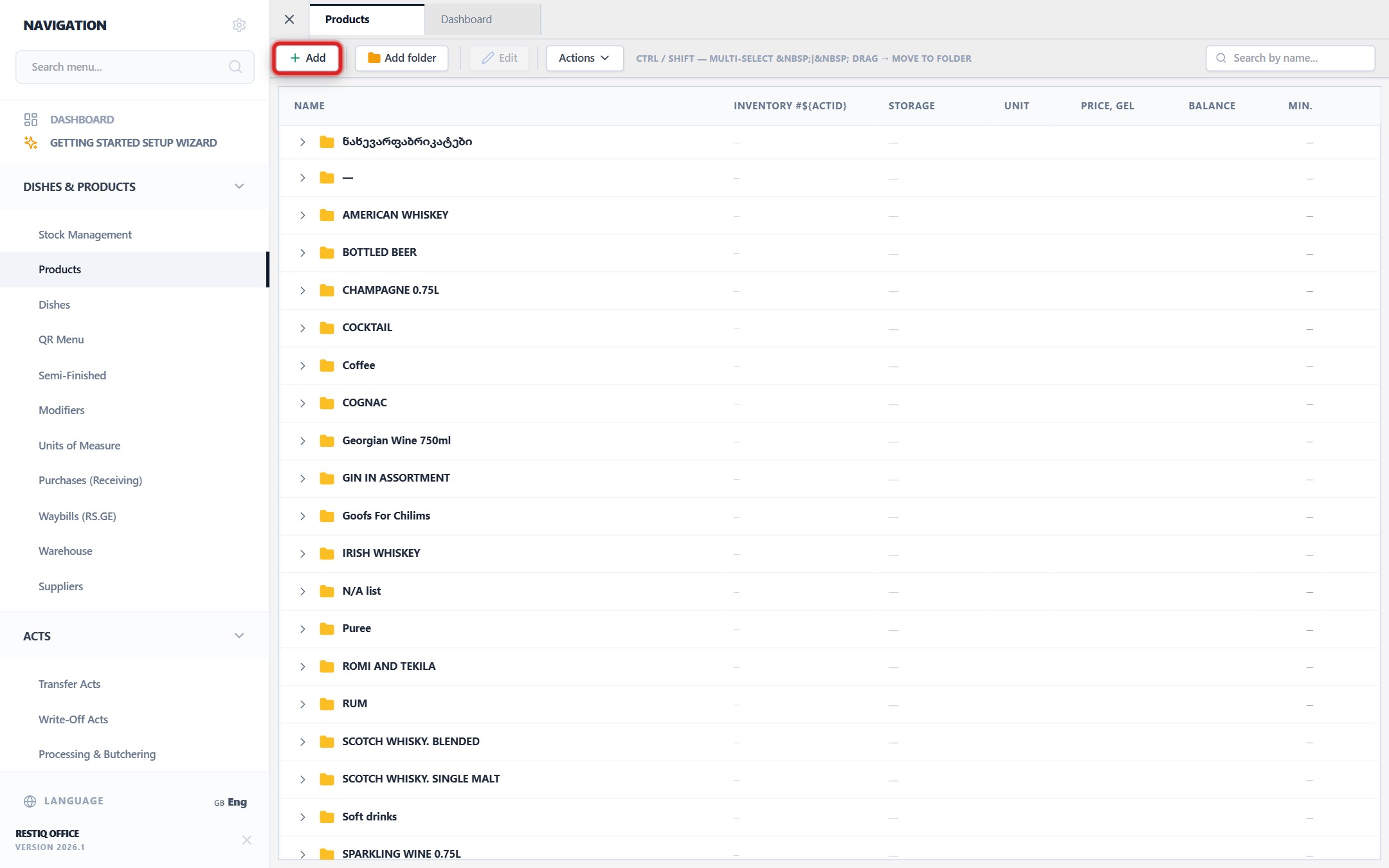
In the top action toolbar of the Products management view, click the "+ Add" button.
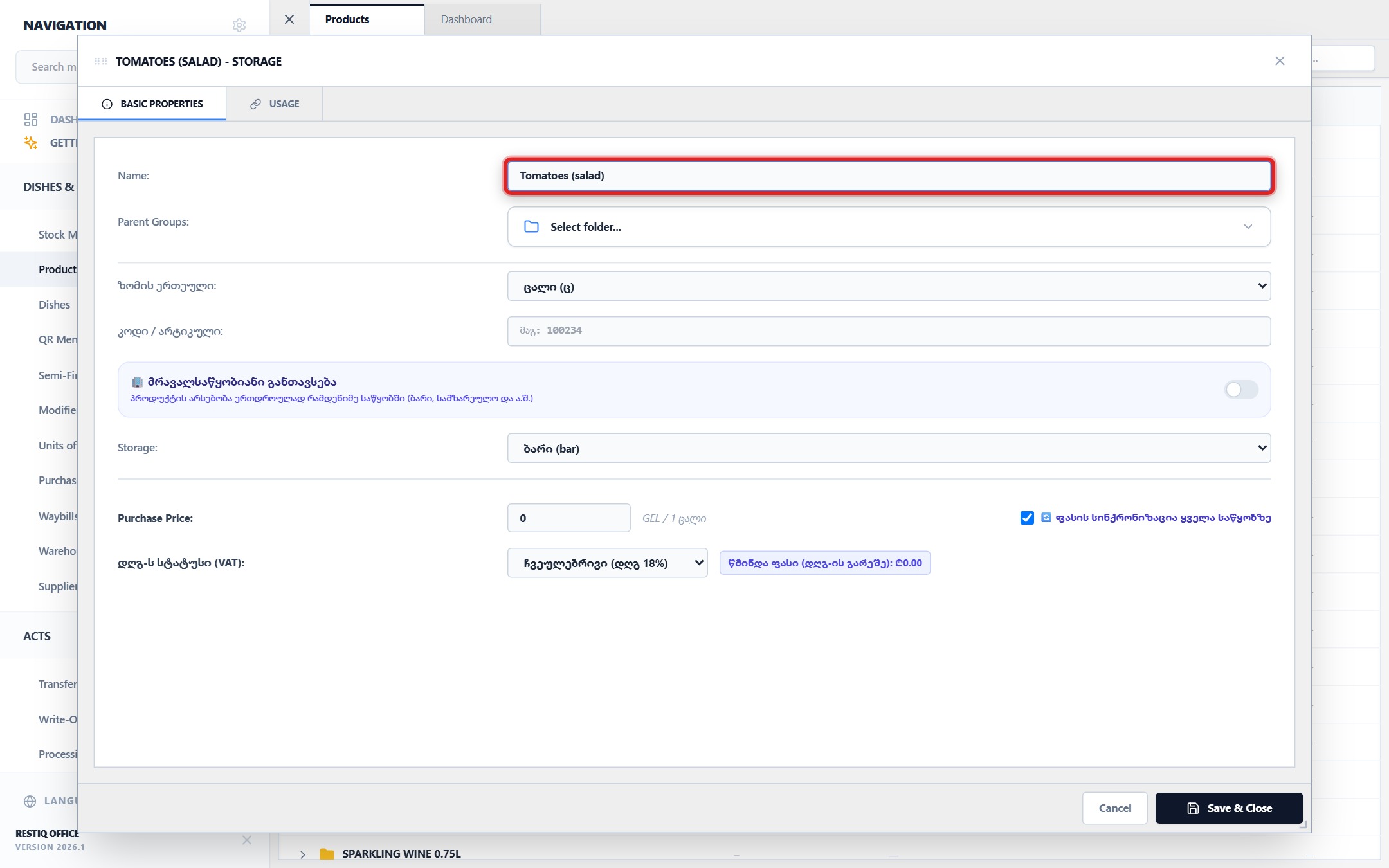
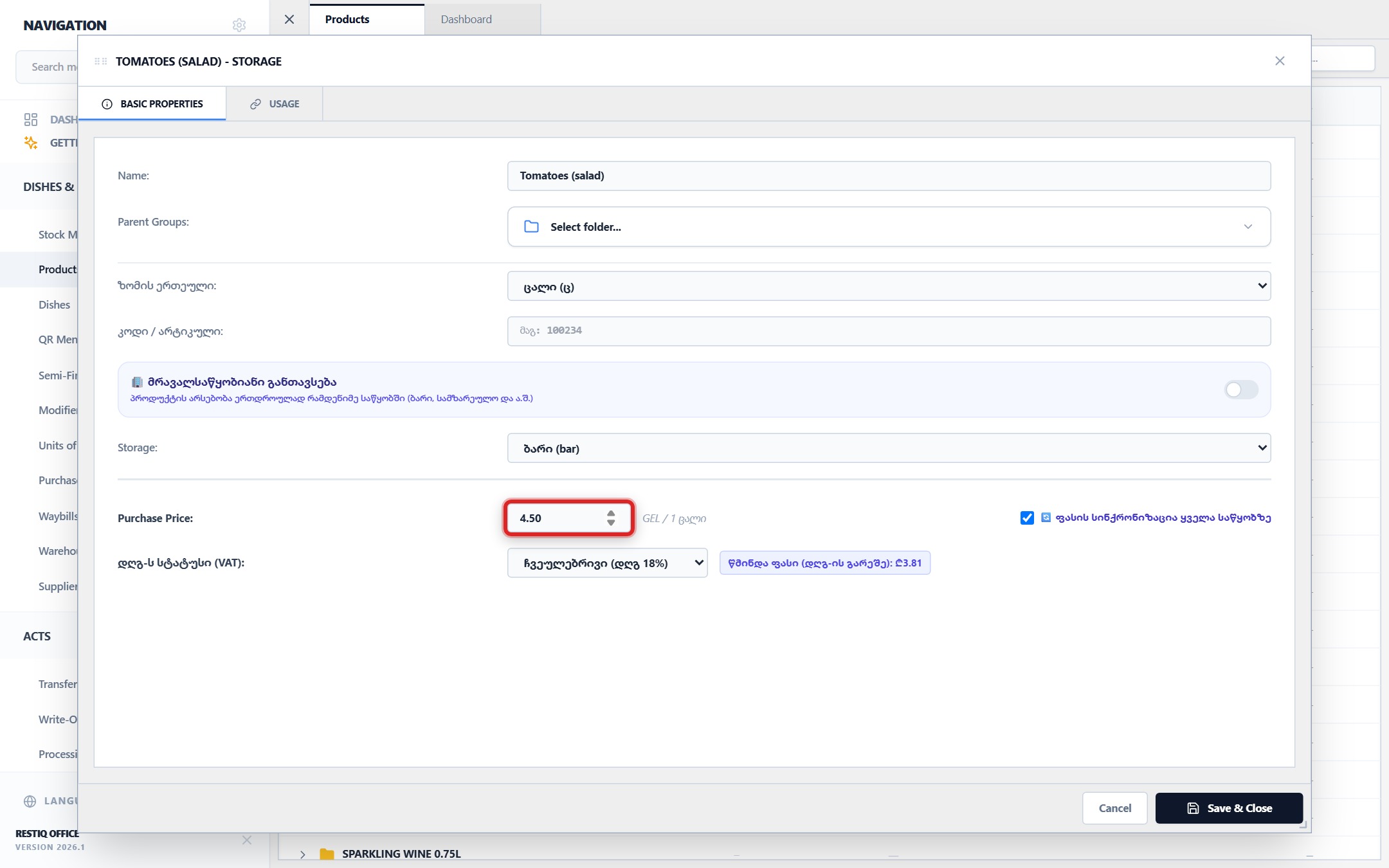
In the modal window, enter the exact item name in the "Product Name" field (e.g., "Tomatoes (salad)").
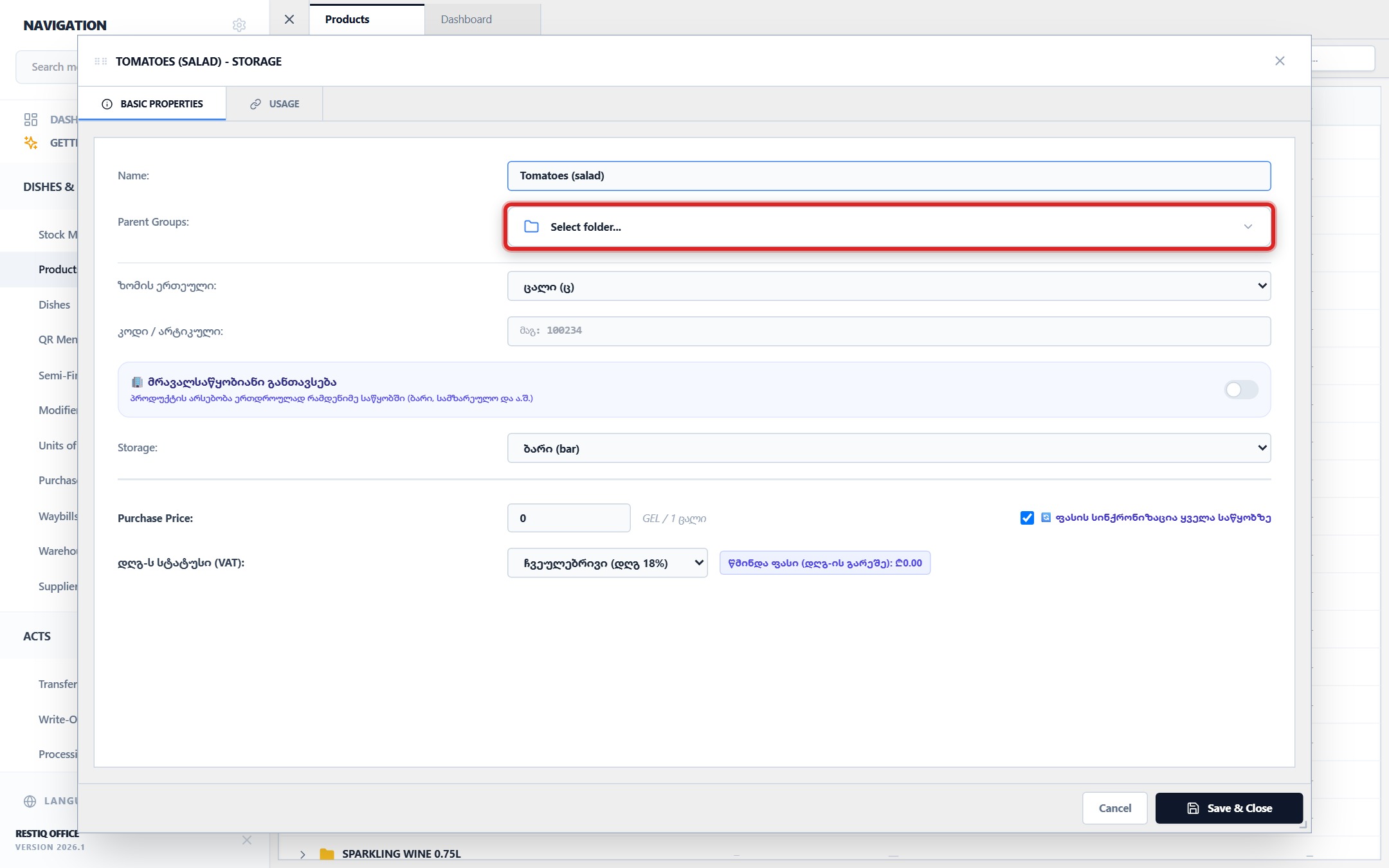
Select the target folder/category in "Parent Groups" (e.g., "Vegetables", "Meat", "Beverages").
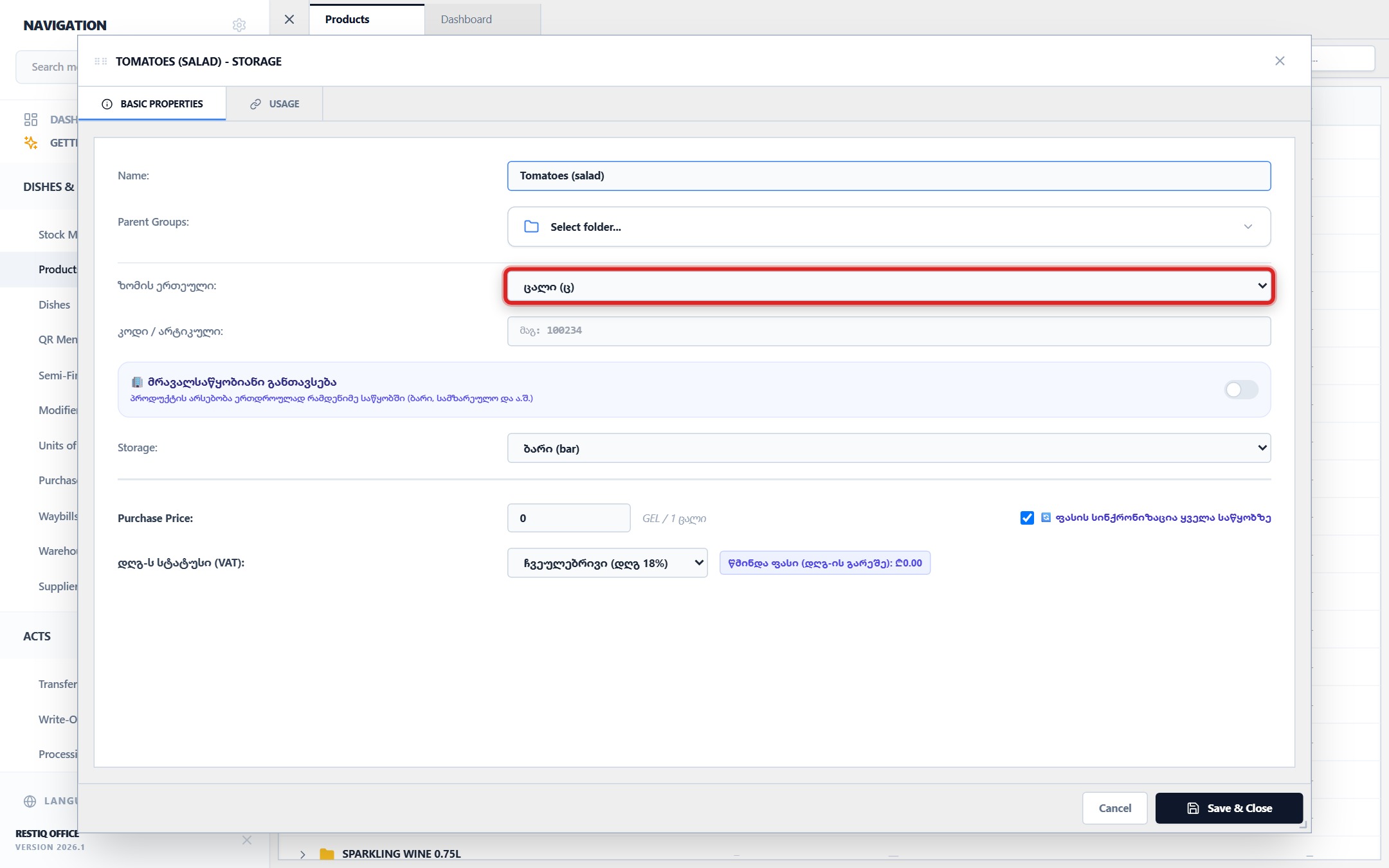
Select the "Unit of Measurement" from the dropdown (kg, pcs, L, g).
Designate the default storage warehouse (e.g., "Kitchen", "Bar") and estimated "Purchase Price".
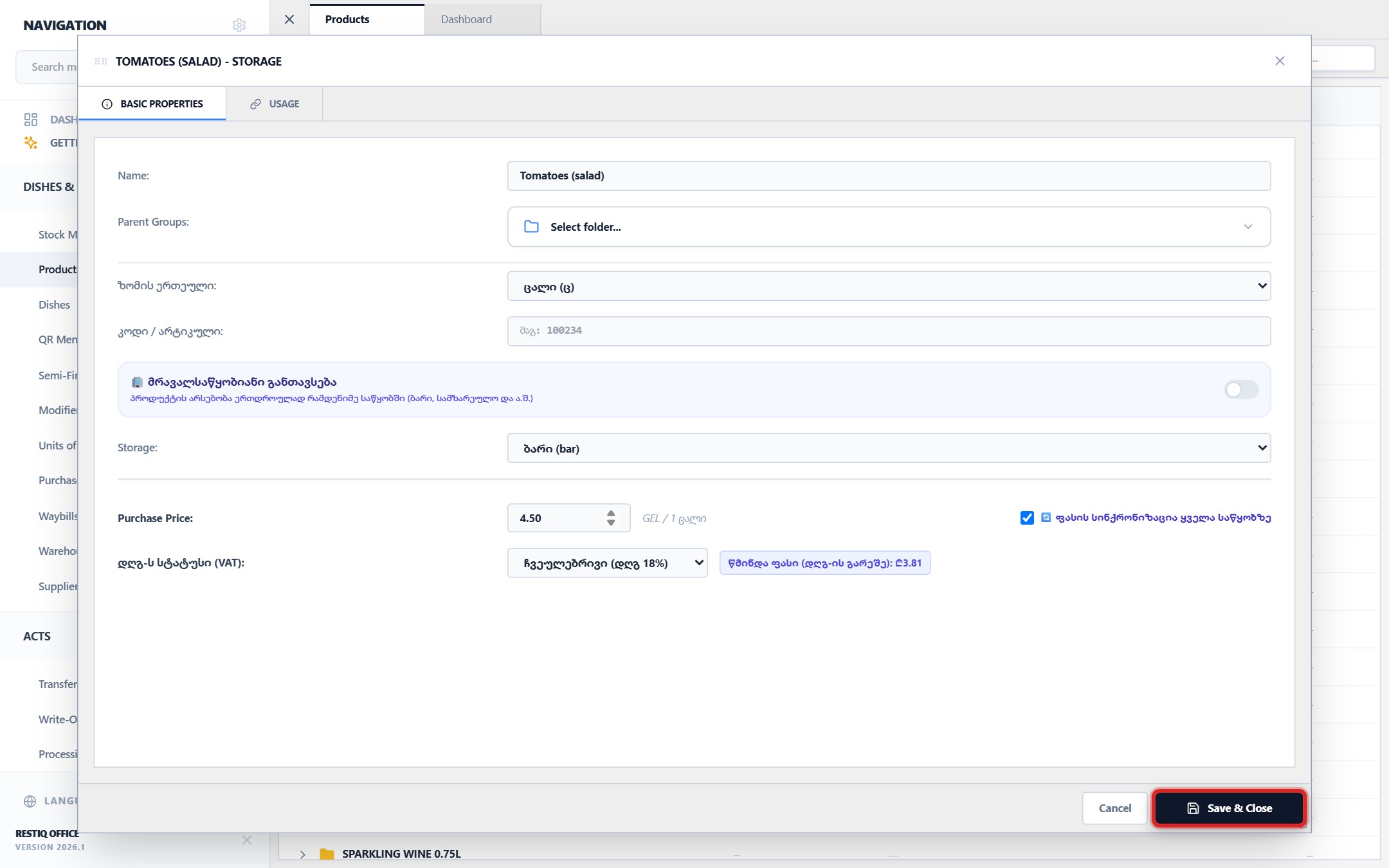
Review entered parameters and click "Save & Close".
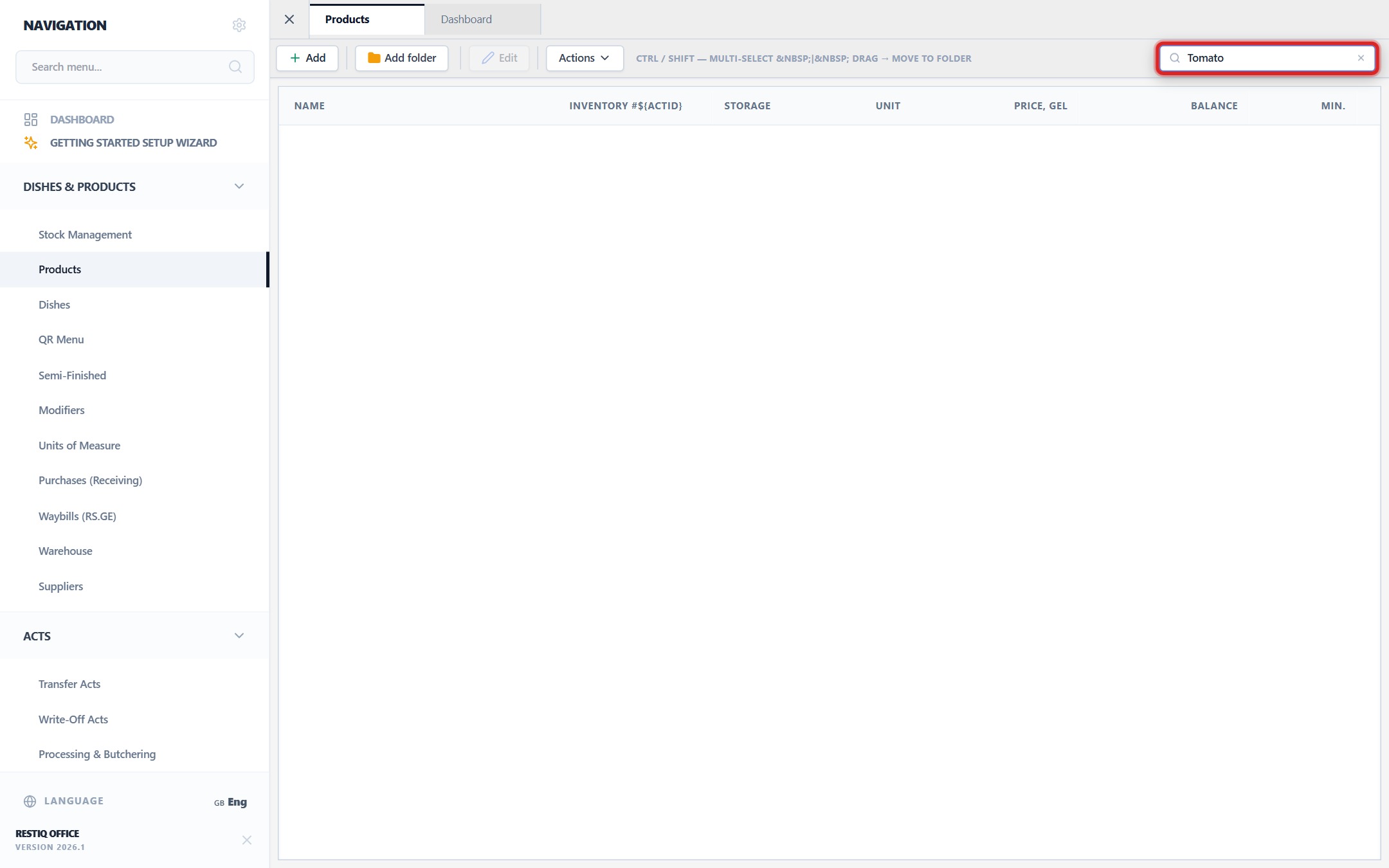
To filter or search inventory items quickly, type in the table search bar by name or product code.
The item will appear immediately in the inventory tree and become active for incoming RS.GE invoices, recipe tech cards, and stocktakes.
Your feedback helps us continuously improve our documentation