

Inventory Audit & Stock Count Management
Comprehensive guide to performing warehouse inventory counts, entering actual stock balances, analyzing shortages and surpluses, and updating real-time inventory in RestIQ BackOffice.
The Inventory module allows restaurant managers to conduct precise stock counts, identify discrepancies between ledger and physical stock, track shortages and surpluses, and automatically update warehouse levels. Follow these steps to perform an inventory audit:
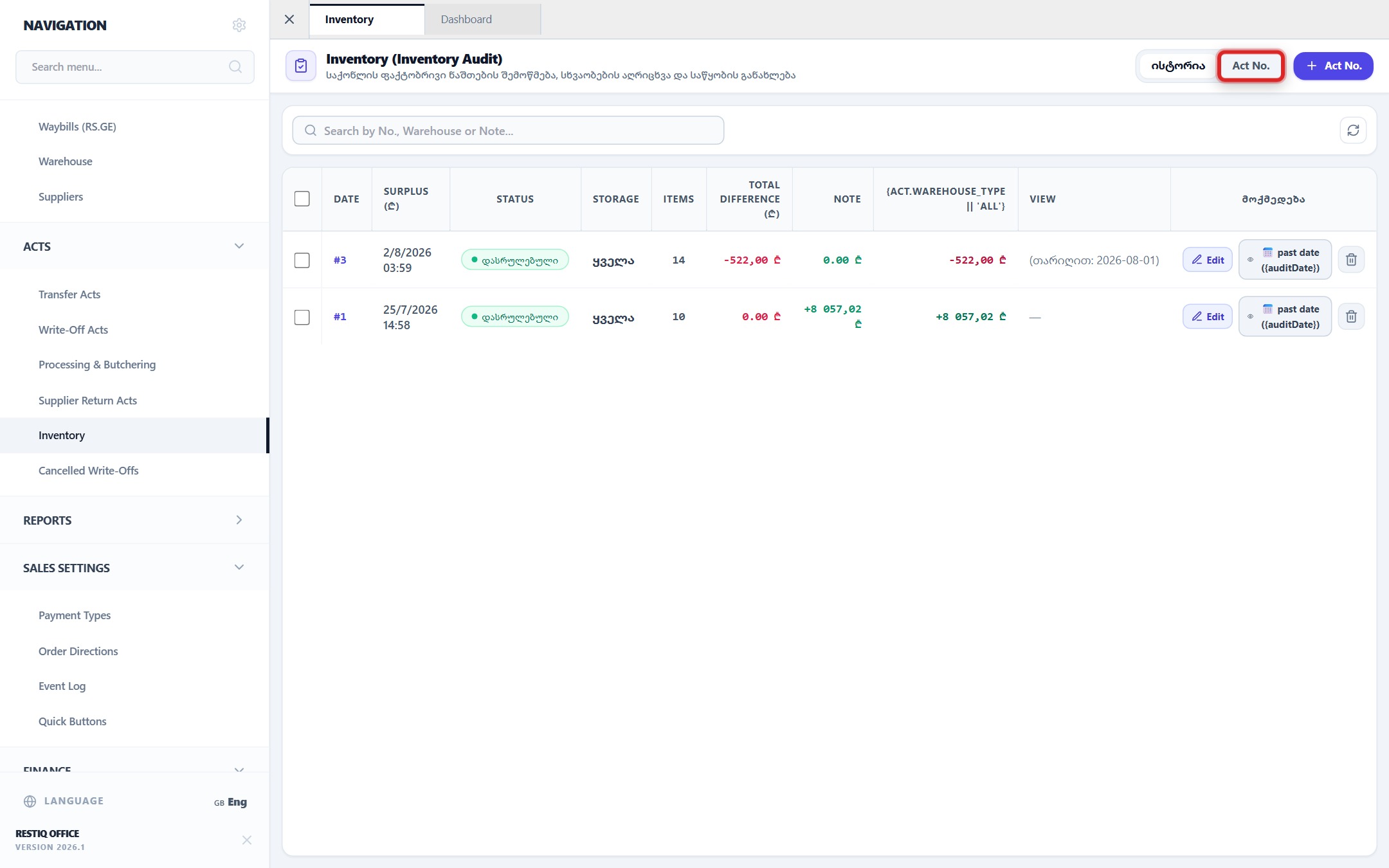
In the top action toolbar of the Inventory module, click the "New Inventory" button.
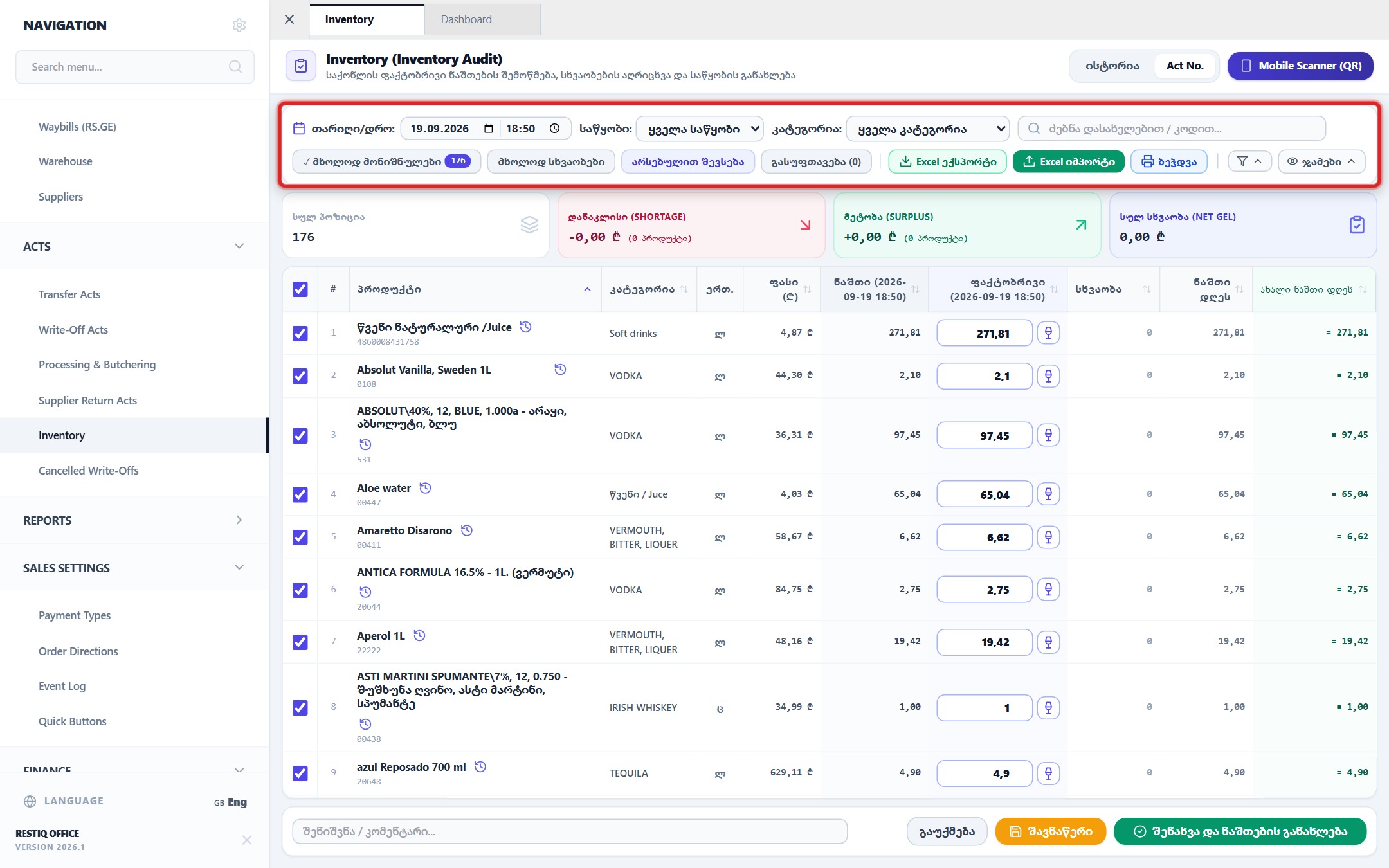
In the filter toolbar, select the target warehouse (e.g., "Main Storage", "Bar", "Kitchen") and item category.
In the "Actual Stock" column, enter the physically counted quantities or use voice dictation.
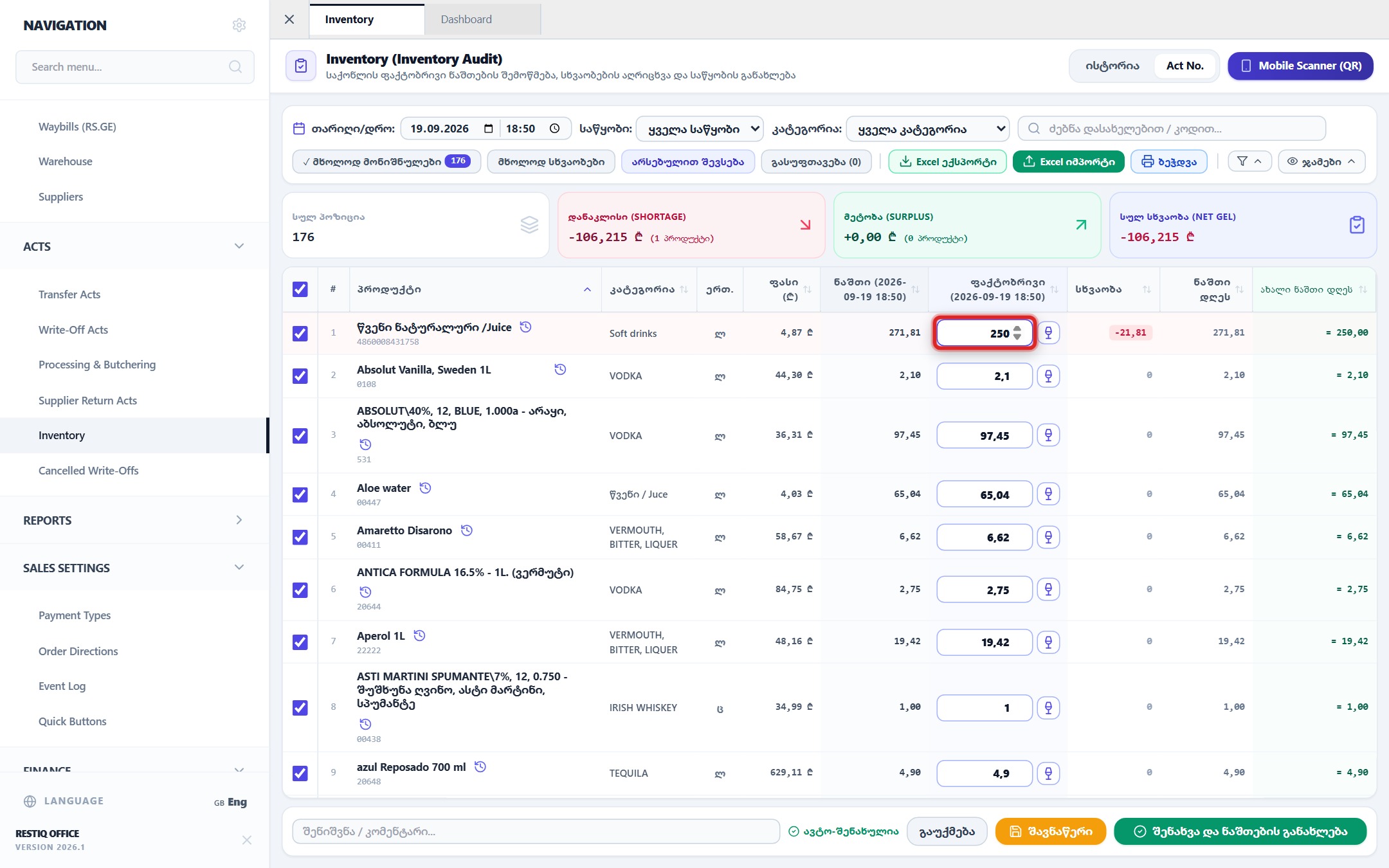
The system instantly calculates variance between book and physical stock, summarizing shortages and surpluses in monetary value.
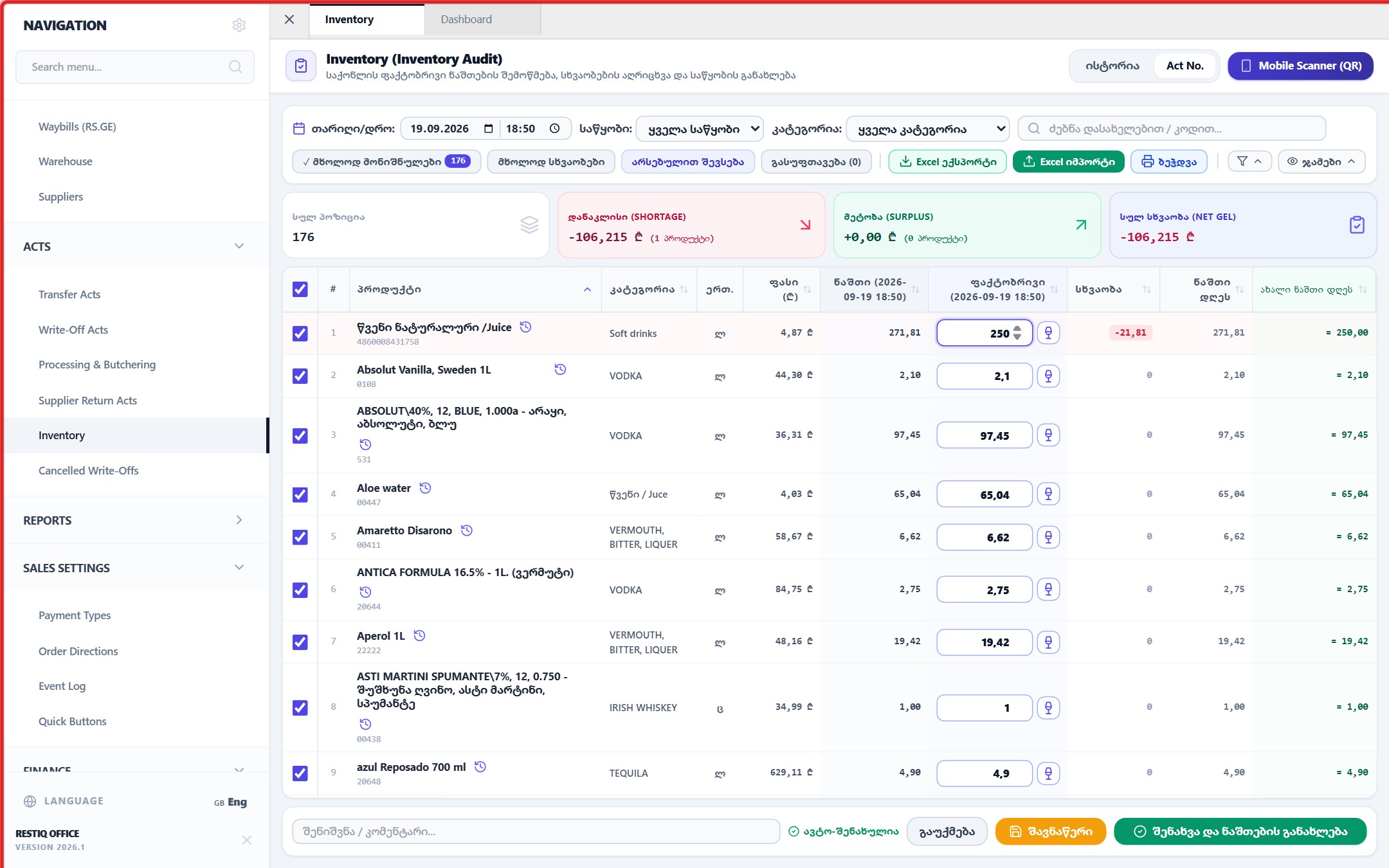
To review only items with stock variance, toggle "Discrepancies Only" or export the audit sheet to Excel.
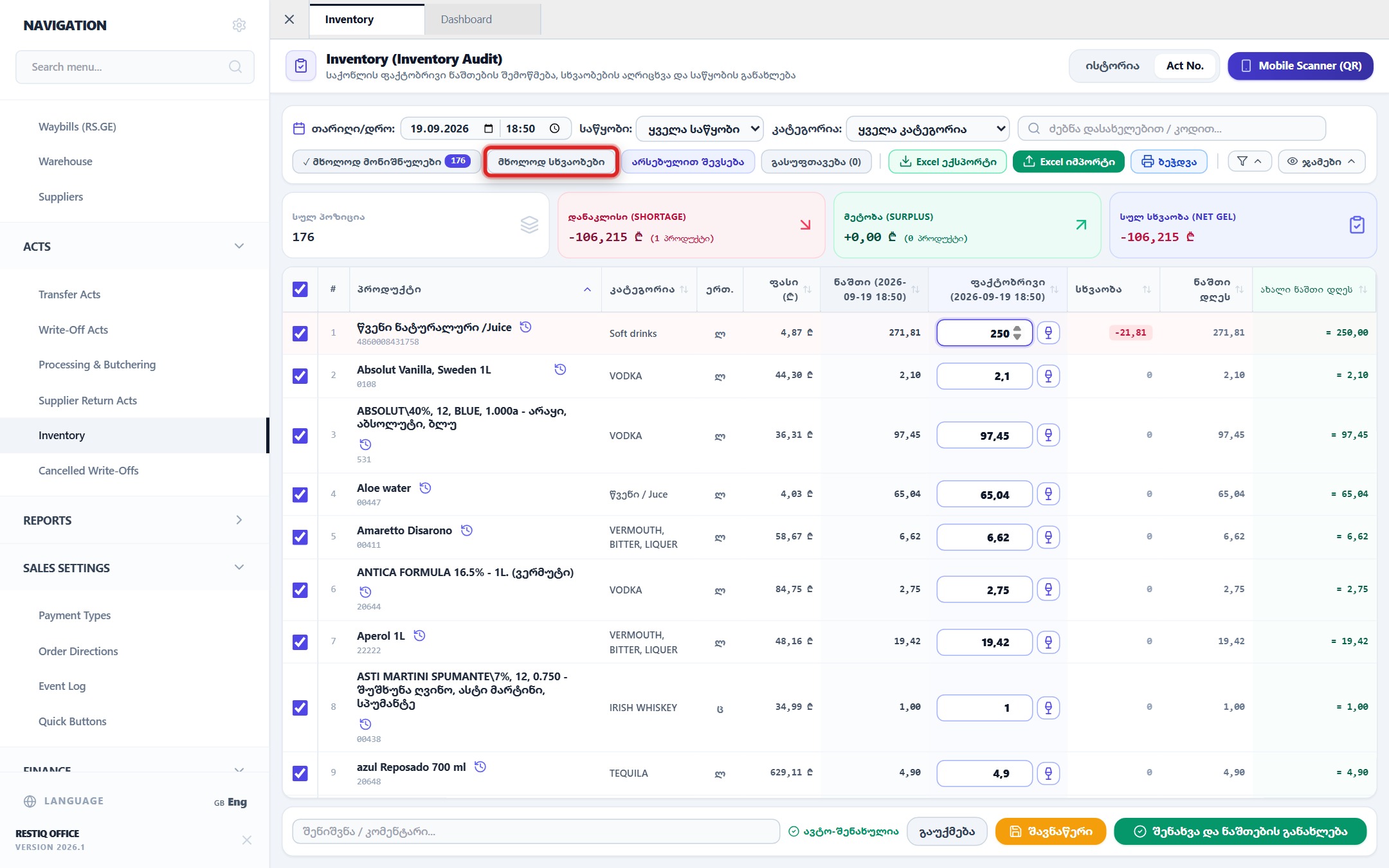
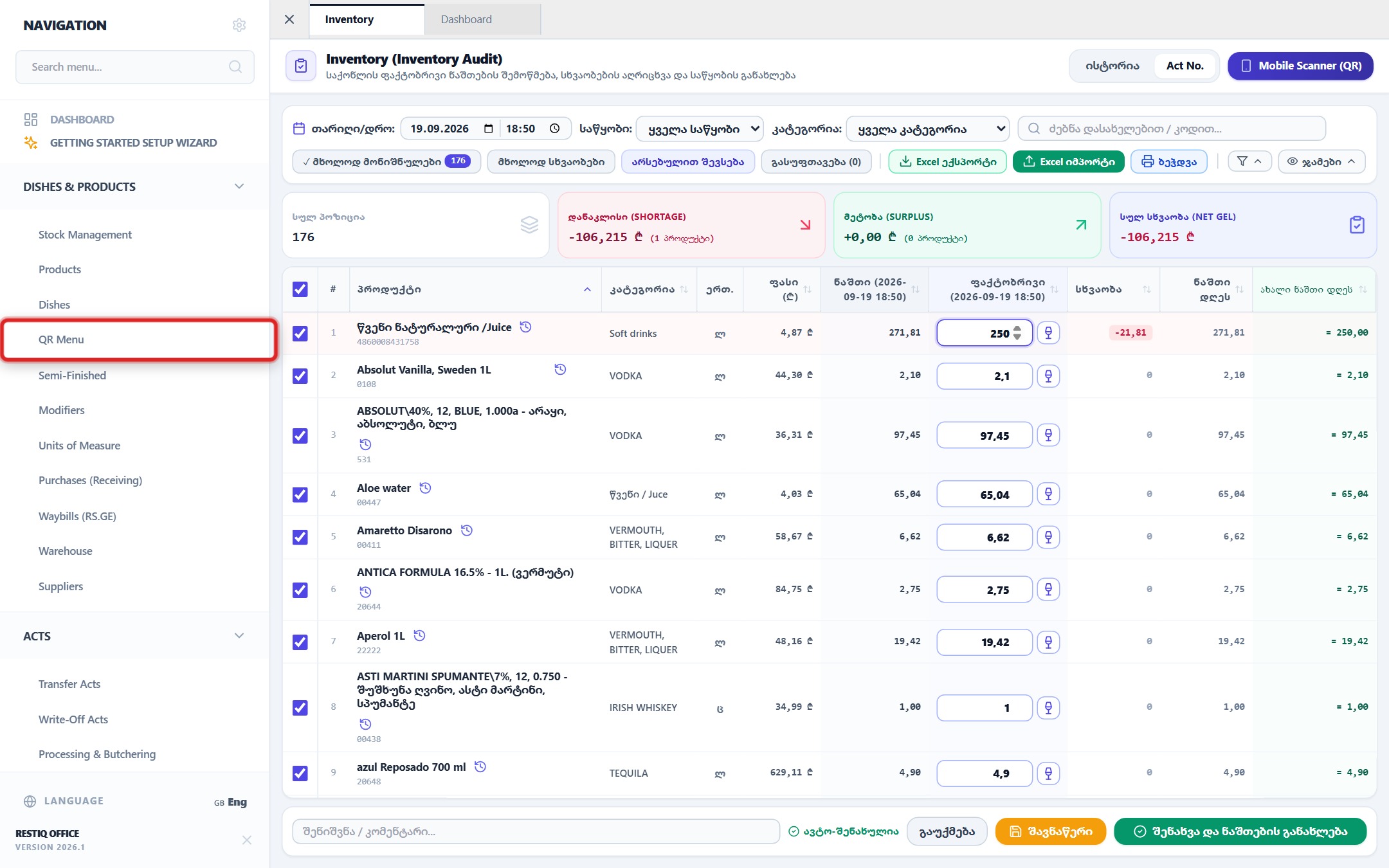
To count stock using a mobile smartphone camera, open the "Mobile QR Scanner" for direct barcode scanning.
After finishing the physical count, click "Save & Update Warehouse Stocks".
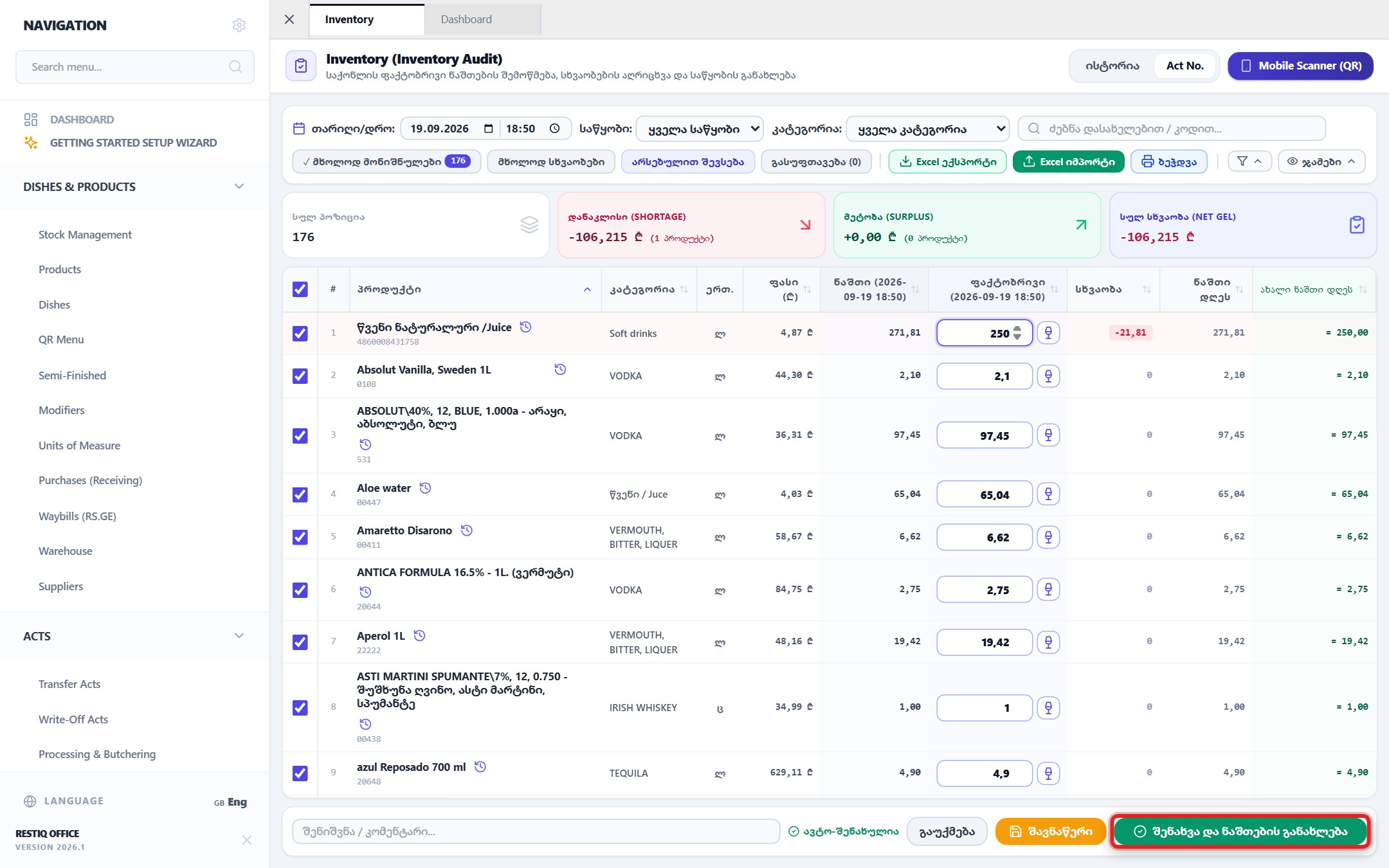
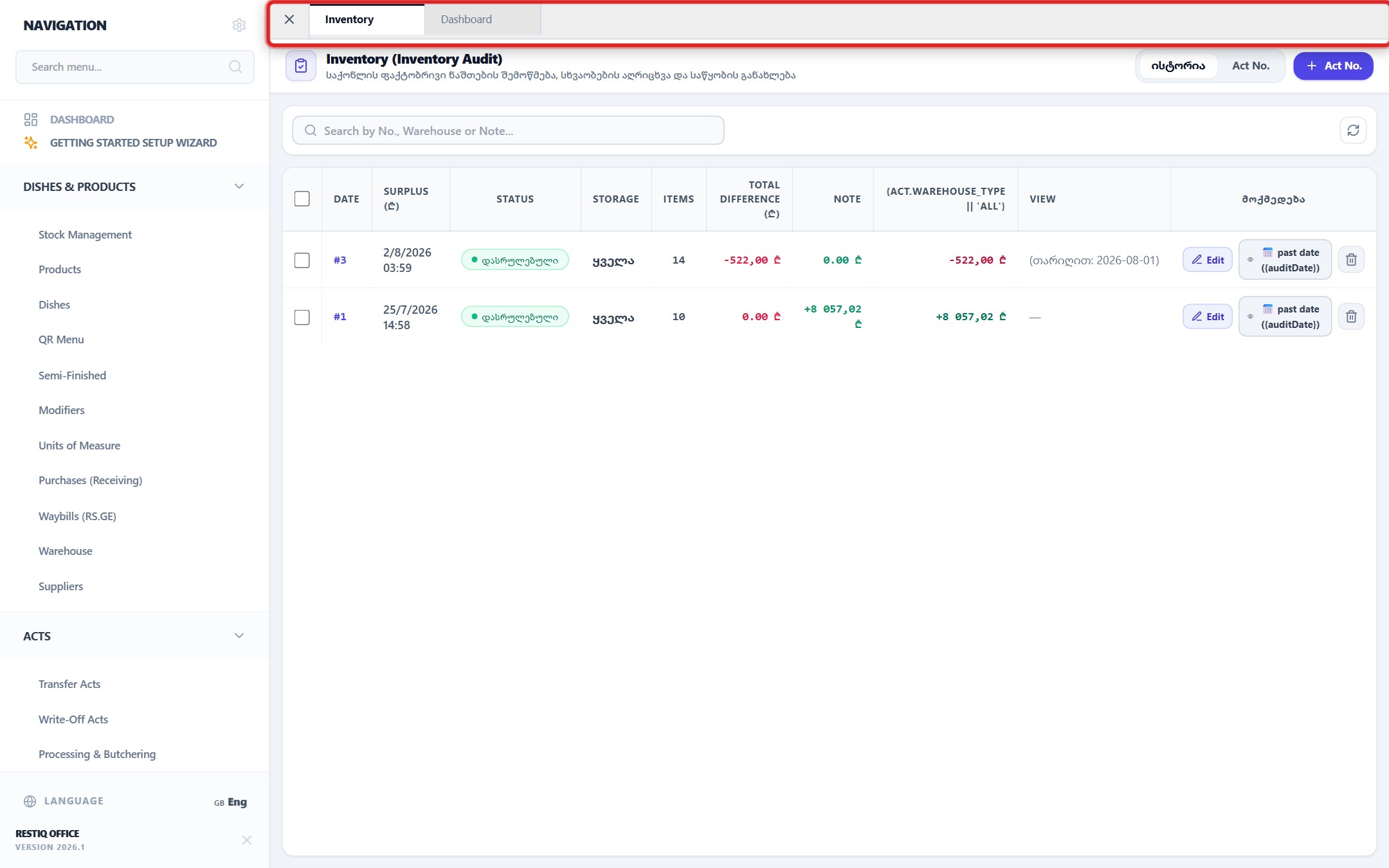
The audit act is logged into history, warehouse stock levels are automatically adjusted, and printable report sheets become available.
Your feedback helps us continuously improve our documentation